StraitsX may require you to verify a blockchain wallet before it can be used for certain blockchain transfers.
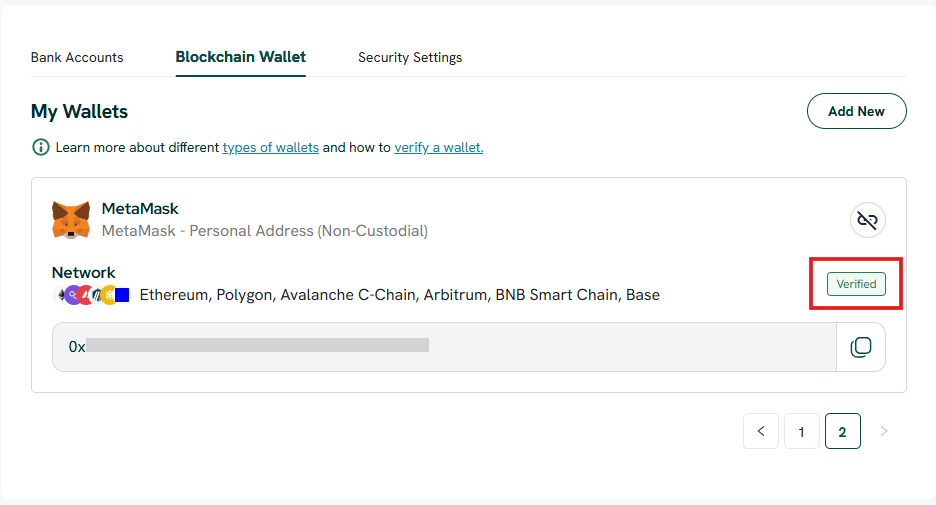
You can add and verify a wallet in advance from "My Account" > "Blockchain Wallet". If you have already made a Transfer In and additional information is required, you can complete the required action from the pending transaction.
TABLE OF CONTENTS
- Important information for Business Accounts
- Which wallet addresses can I use?
- What if I already made a Transfer In before verifying my wallet?
- How do I add and verify a blockchain wallet in advance?
- What happens after I add a custodial wallet?
- How do I verify ownership of a private wallet?
- Need help?
Important information for Business Accounts
- For Transfer Out, Business Account users may only link blockchain wallets they own. Third-party wallets are supported for Transfer Out if the wallet is a custodial wallet. However, third-party private wallets are not supported.
- For Transfer In, the requirements depend on the wallet type. Follow the Transaction Declaration or wallet verification instructions shown in your StraitsX account.
Which wallet addresses can I use?
For Business Accounts:
Wallet | Transfer In | Transfer Out |
|---|---|---|
Your custodial wallet — an account you hold with an exchange or custodial platform | Supported. A Travel Rule declaration is required. | Supported. Whitelisting is required. |
Your private wallet — a self-custodial wallet whose private keys you control | Supported. Wallet verification is required. | Supported. Whitelisting is required. |
A third-party custodial wallet — an exchange or custodial account owned by another person or entity | Supported. A Travel Rule declaration is required. | Supported. A Travel Rule declaration is required. |
A third-party private wallet | Not supported. | Not supported. |
What if I already made a Transfer In before verifying my wallet?
If StraitsX detects an incoming blockchain transfer that requires additional information, you will be prompted to complete the transaction details.
Step 1: Select “Confirm Deposit”
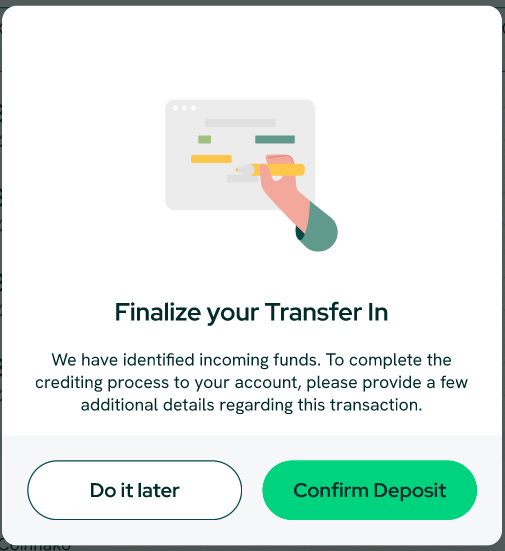
- When the "Finalize your Transfer In" prompt appears, click "Confirm Deposit".
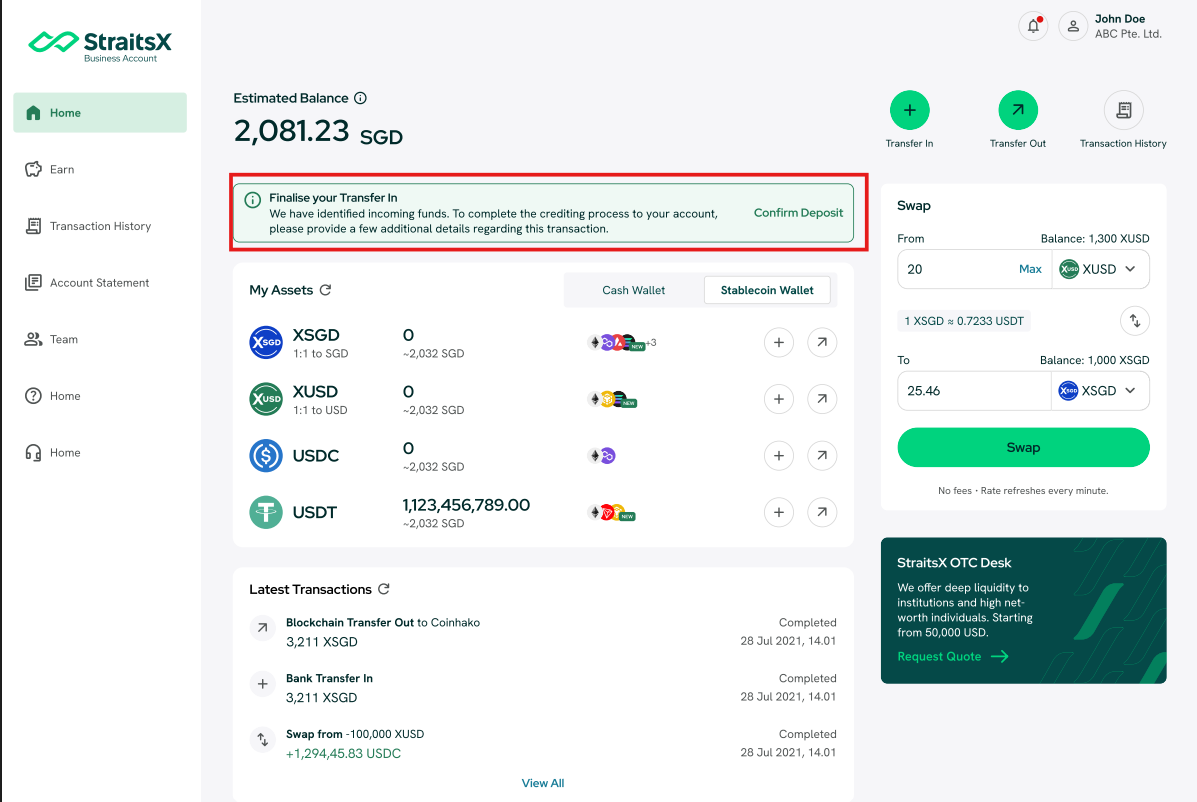
- If you select "Do it later", you can return to the transaction later from "Transaction History".
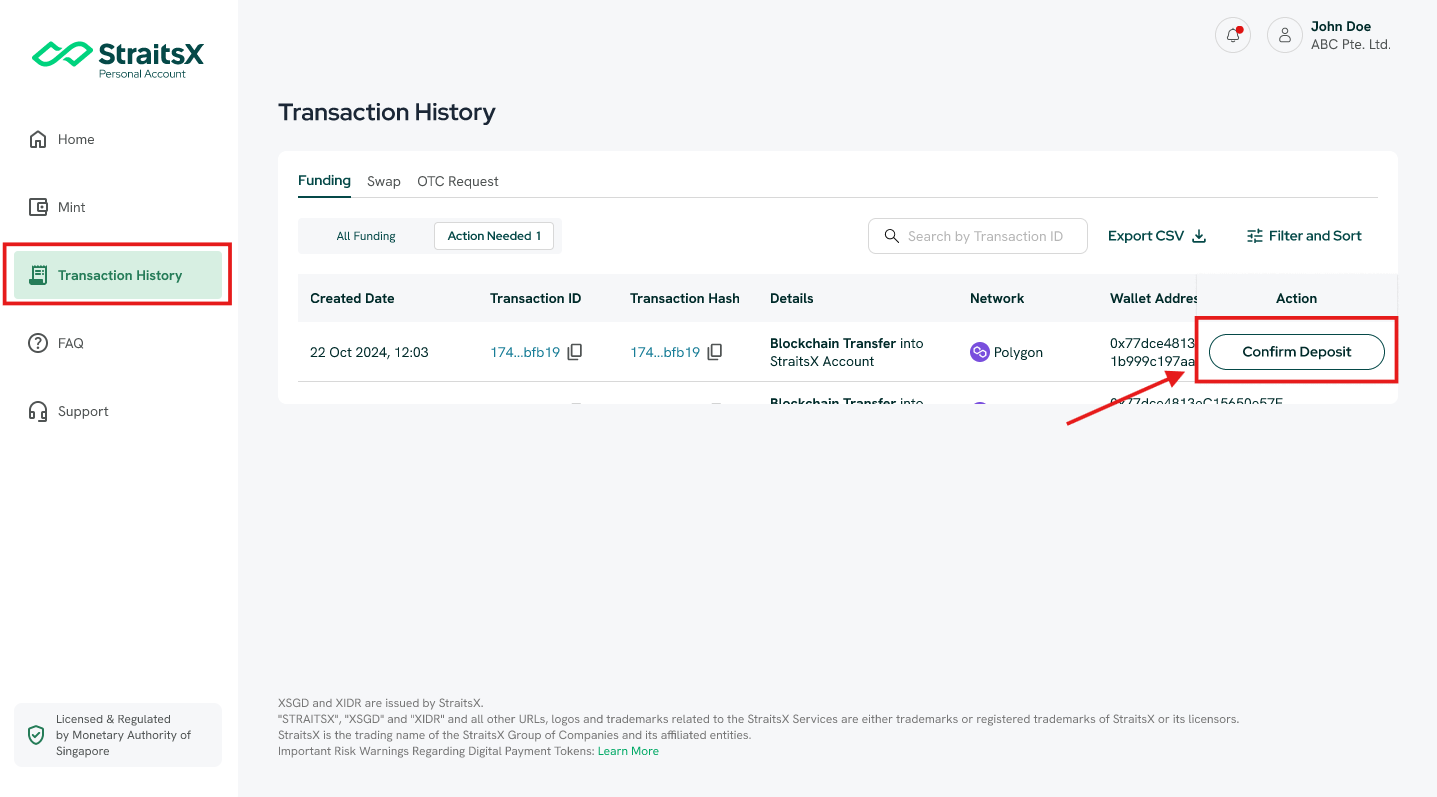
Step 2: Open the pending transaction
- Go to "Transaction History" and select the "Action Needed" tab.
- Find the relevant transaction and click "Confirm Deposit".
Step 3: Complete the Transaction Declaration
Provide the information requested on screen:
- Confirm whether you are the originator of the transaction.
- Select whether the sending address is from a Custodial Wallet or Private Wallet.
- Complete the additional information requested on screen.
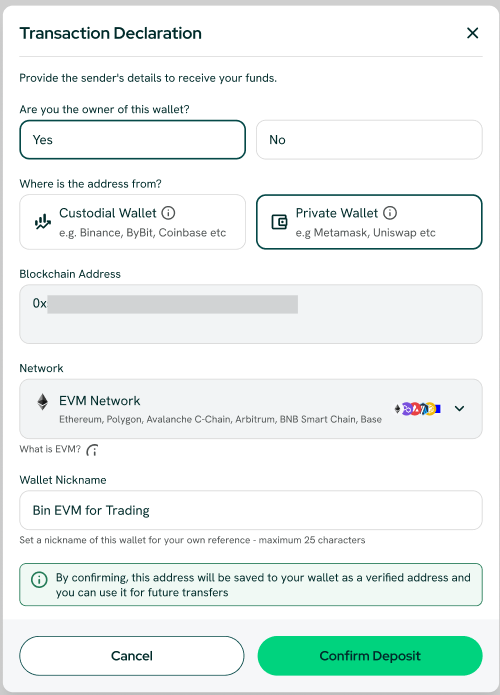
The next steps depend on the type of wallet used for the transfer.
- If you transferred from a private wallet that you own, enter the required wallet details, such as:
- Blockchain address
- Network
- Wallet nickname
- Then click "Confirm Deposit".
Once the required verification is completed successfully, the wallet address will be saved to your account as a verified wallet and the pending transaction can be processed.
- If you transferred from a custodial wallet
- Complete the Transaction Declaration / Travel Rule instructions displayed on screen.
- If StraitsX is unable to recognise or verify the sending wallet automatically, follow the on-screen instructions to contact StraitsX Support.
- If the wallet belongs to another person or entity
- For Business Accounts, third-party custodial wallets may be supported. Follow the Transaction Declaration or wallet verification instructions displayed on screen.
- Third-party private wallets are not supported.
How do I add and verify a blockchain wallet in advance?
Step 1: Open your Blockchain Wallet settings
- Log in to your StraitsX account.
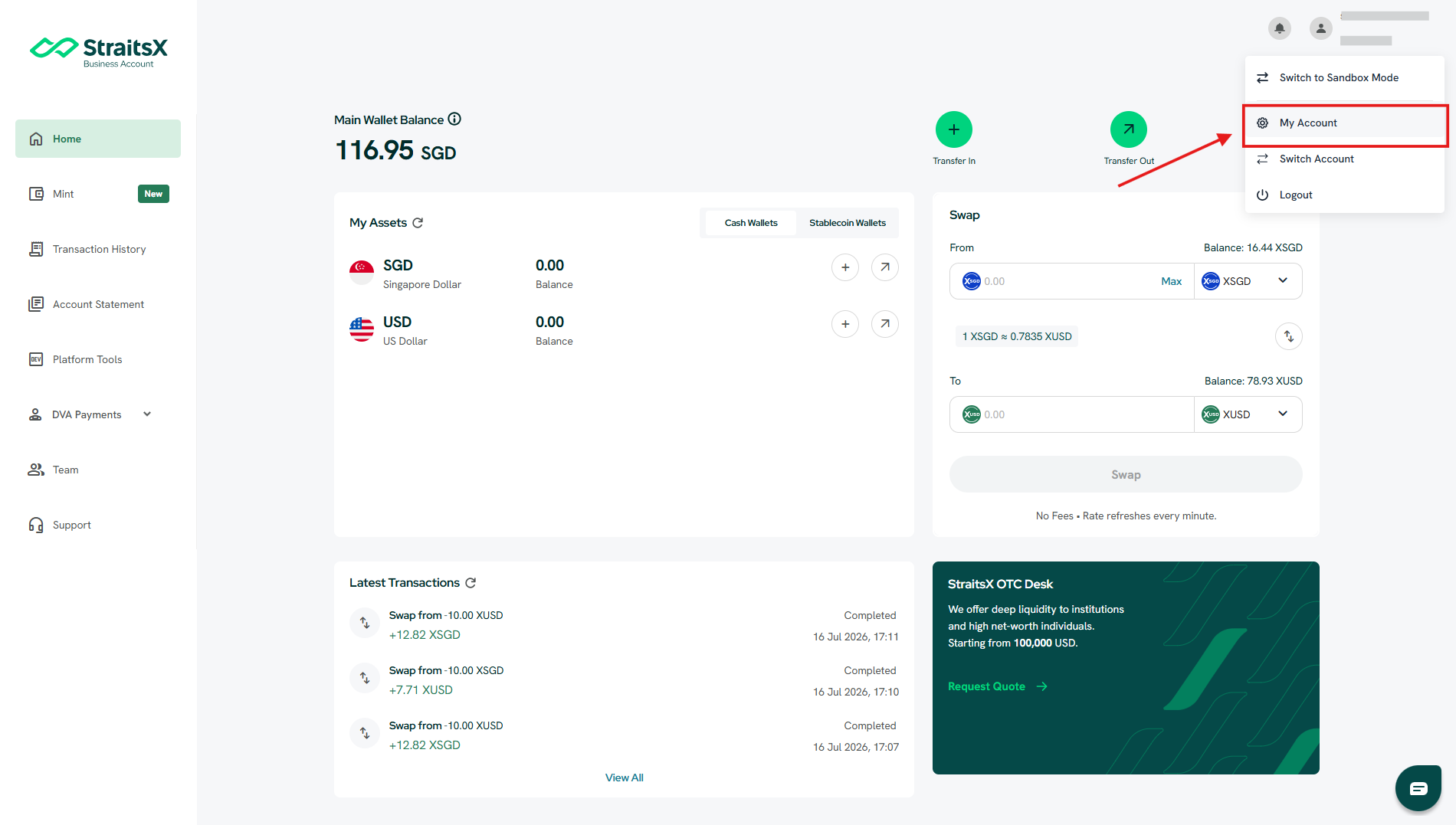
- Click your name in the top-right corner and select "My Account".
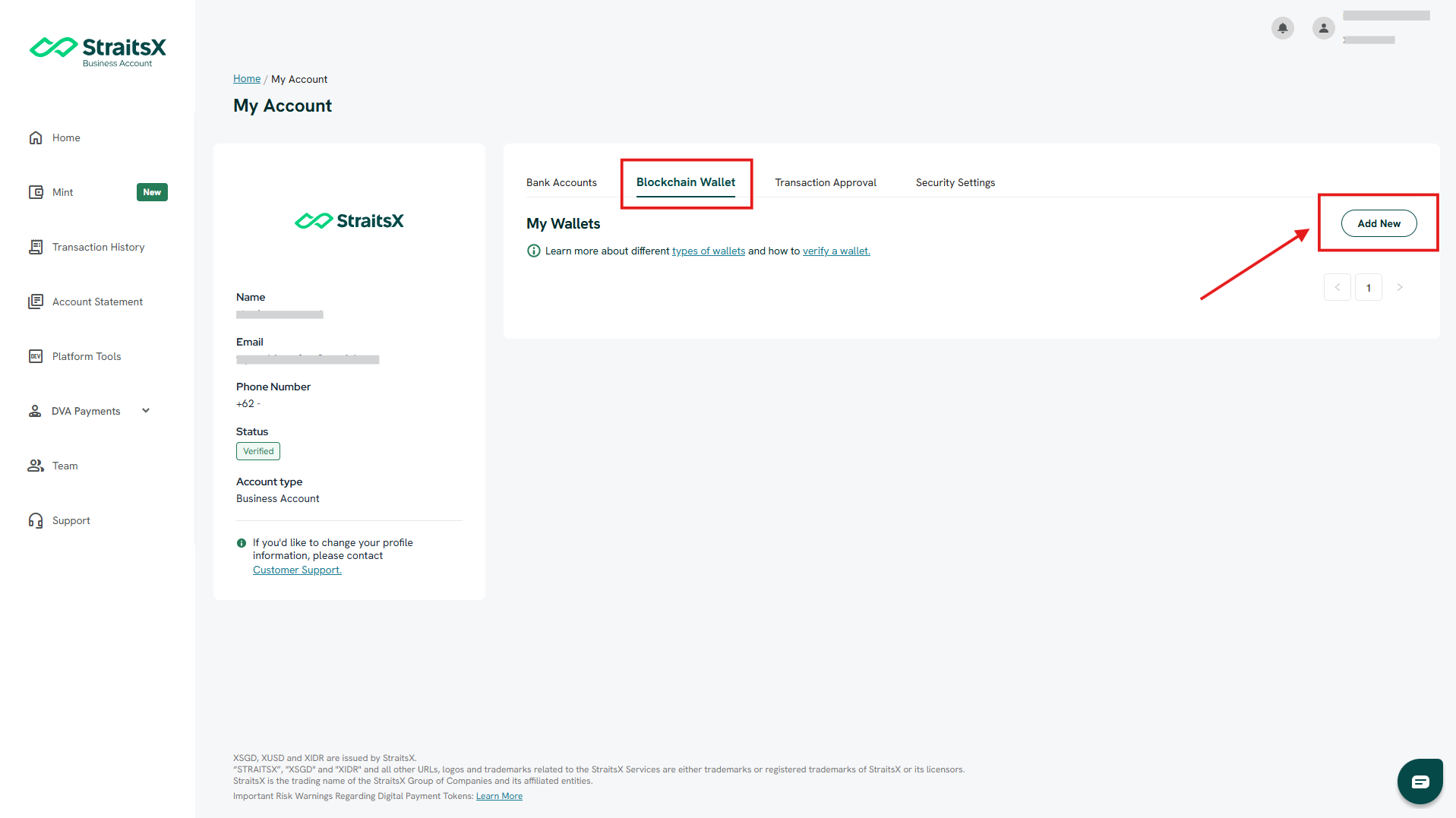
- Under "My Account", click "Blockchain Wallet".
- Click "Add New".
Step 2: Add a wallet
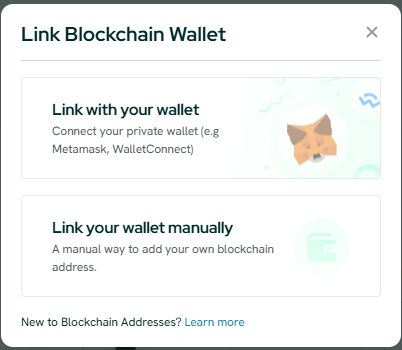
You can either:
- Link with your wallet — connect a supported private wallet; or
- Link your wallet manually — enter the blockchain wallet details manually.
Method 1: Link with your wallet
Step 1: On the "Link Blockchain Wallet" pop-up, select “Link with your wallet”.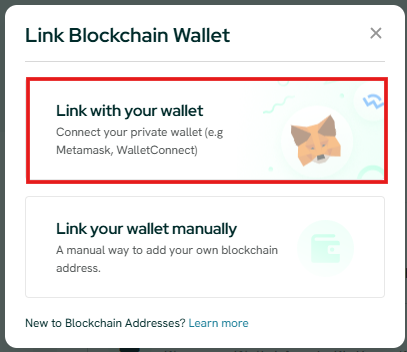
Step 2: Select “MetaMask” or “WalletConnect”, depending on the wallet provider you are using.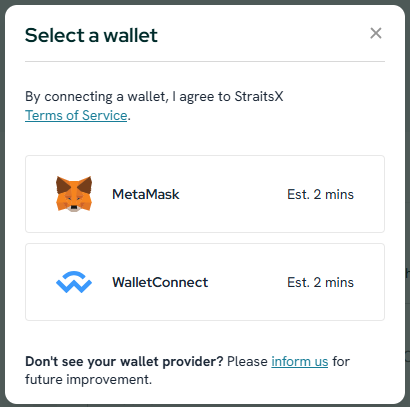
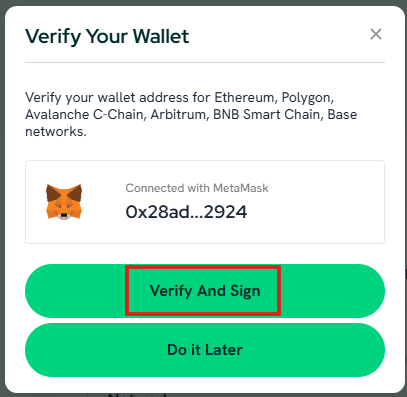
Step 3: Once your wallet is connected, click “Verify and Sign” to submit your wallet for verification. You can also select “Do It Later” if you prefer to complete the verification later.
Step 4: A signature request will appear in your wallet application or browser extension. Review the request and click "Confirm" to continue.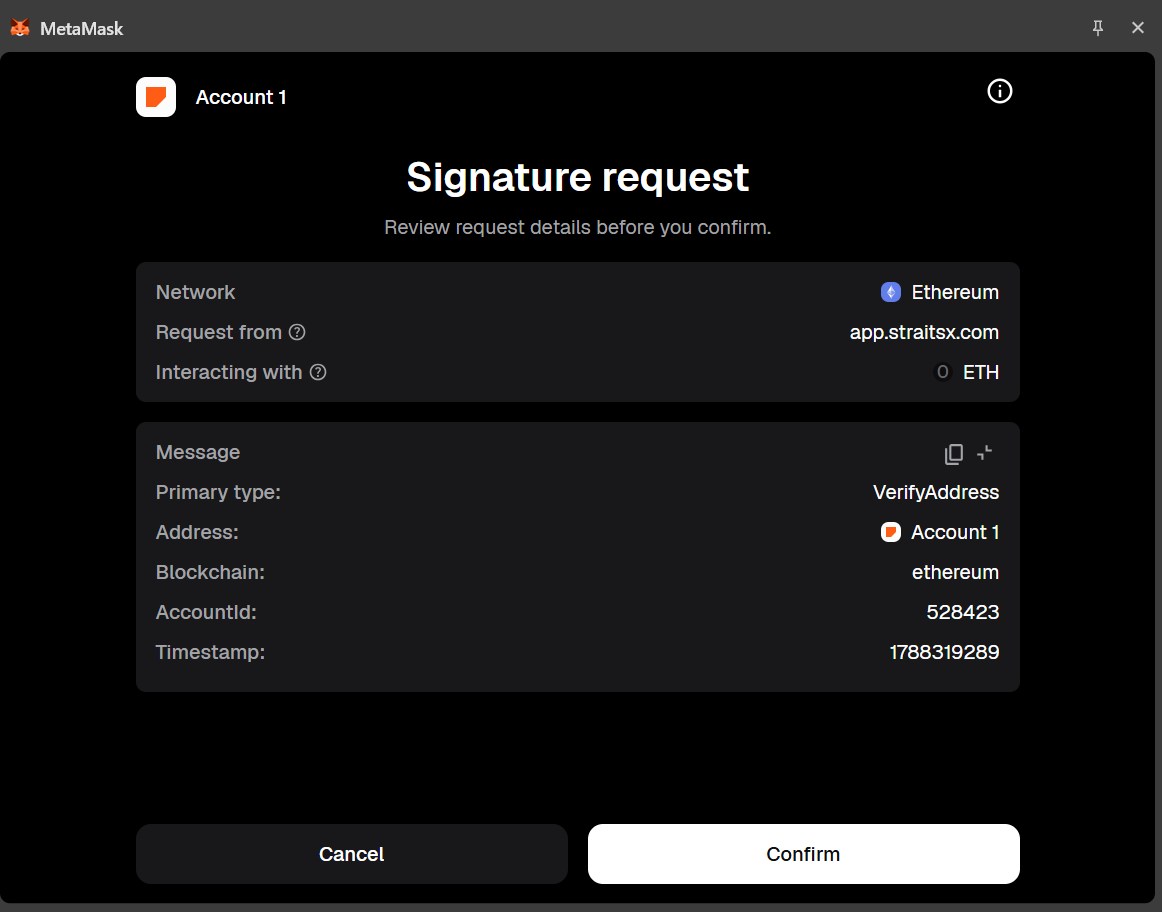
Step 5: Once confirmed, your verification request will be submitted. You will be notified once your wallet has been successfully verified.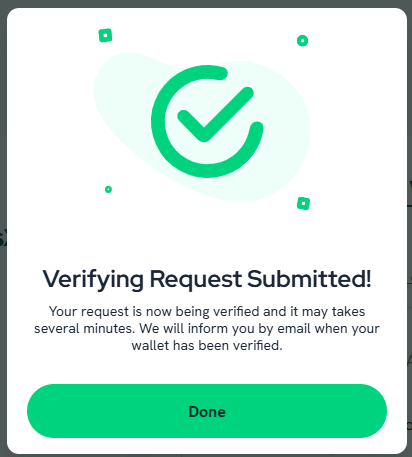
Method 2: Link your wallet manually
Step 1: Link Blockchain Wallet
On the "Link Blockchain Wallet" pop-up, select “Link your wallet manually”.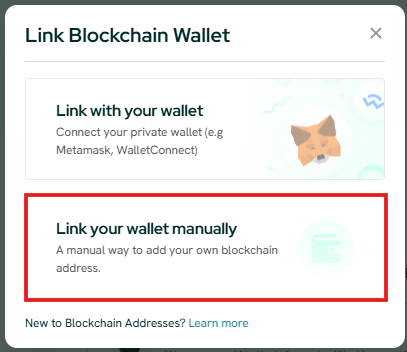
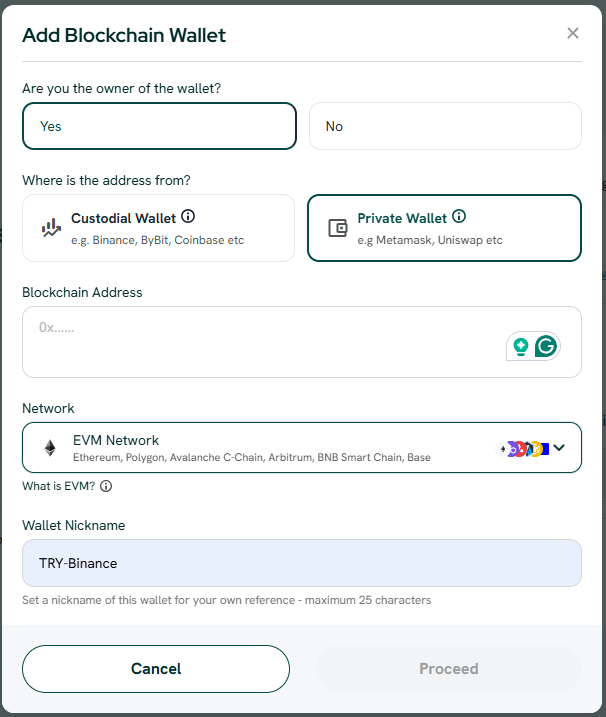
Step 2: Confirm whether you are the owner of the wallet.
If you are not the owner of the wallet, only supported custodial wallets or exchange accounts can be added. Third-party private wallets are not supported. Then select where the address is from:
- Custodial Wallet: A wallet provided by an exchange or custodial platform, such as Binance or Coinbase.
- Private Wallet: A self-custodial wallet where you control the private keys, such as MetaMask or a Web3 wallet.
Provide the requested details:
- Platform name, if applicable
- Blockchain address
- Network
- Wallet nickname
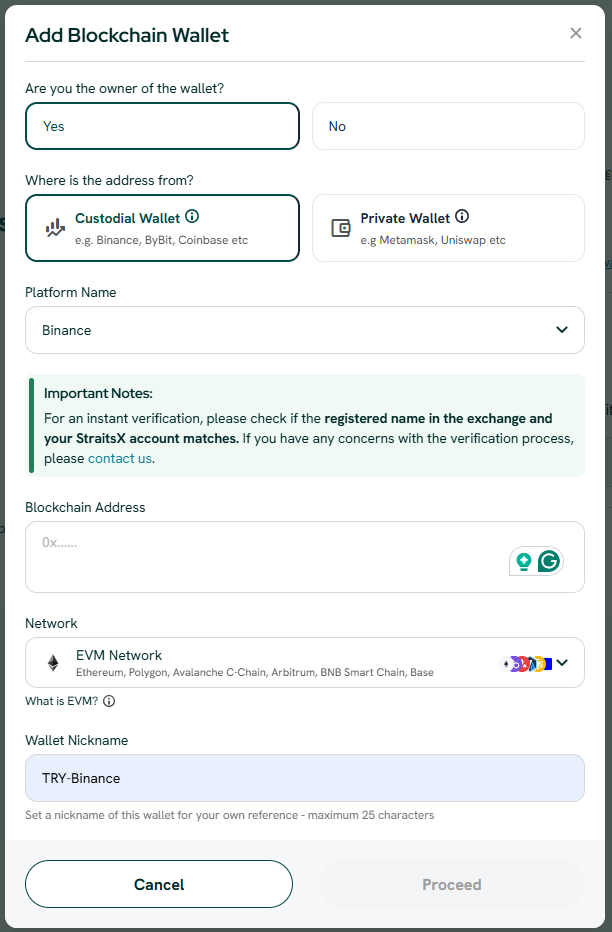
Important note for custodial wallets: For faster verification, make sure the registered name on the custodial platform matches the name on your StraitsX account.
Step 3: Review the wallet details carefully, then click "Confirm". Once submitted, the wallet verification will be processed.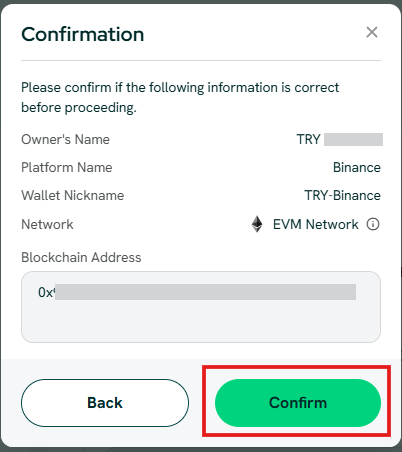
What happens after I add a custodial wallet?
Once submitted, StraitsX will verify the wallet details. Verification is typically instant but may take up to 1 business day.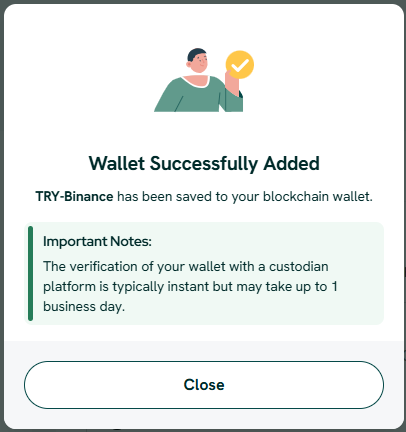
How do I verify ownership of a private wallet?
If you add a private wallet manually, you will need to verify that you control the wallet.
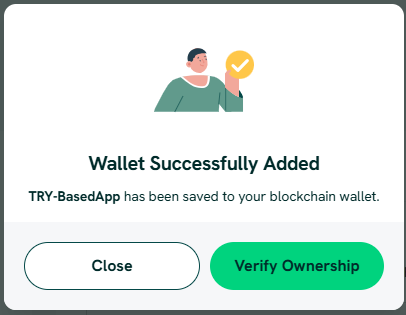
Step 1: Select “Verify Ownership”
After adding your private wallet, click "Verify Ownership".
Step 2: Select an asset and network
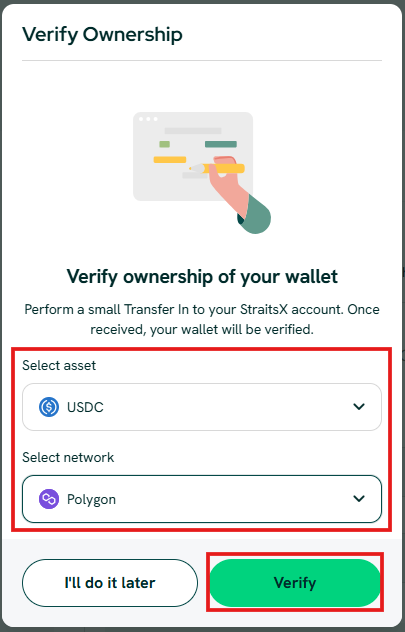
Select the asset and network that you want to use for the verification Transfer In, then click "Verify". You can also select "I’ll do it later" and return to the verification later.
Step 3: Make the verification Transfer In
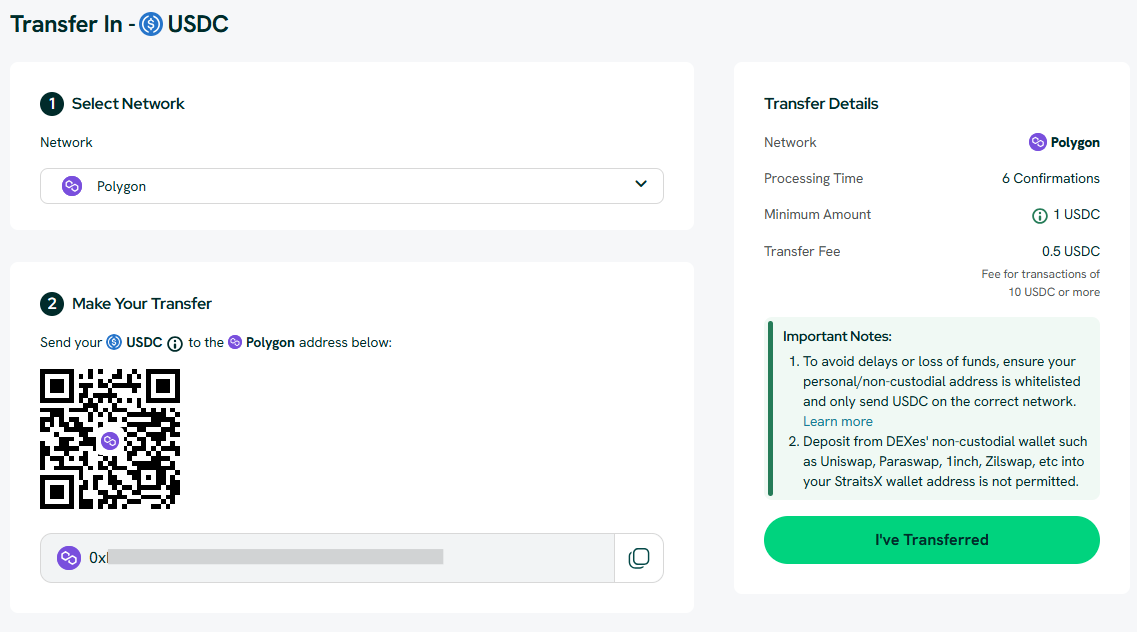
You will be directed to the Transfer In page. Using the wallet you are verifying, send the selected asset over the selected network to the StraitsX address shown. Transfer at least the minimum amount displayed under Transfer Details. Once you have made the transfer, click “I’ve Transferred”.
Step 4: Check your verification status
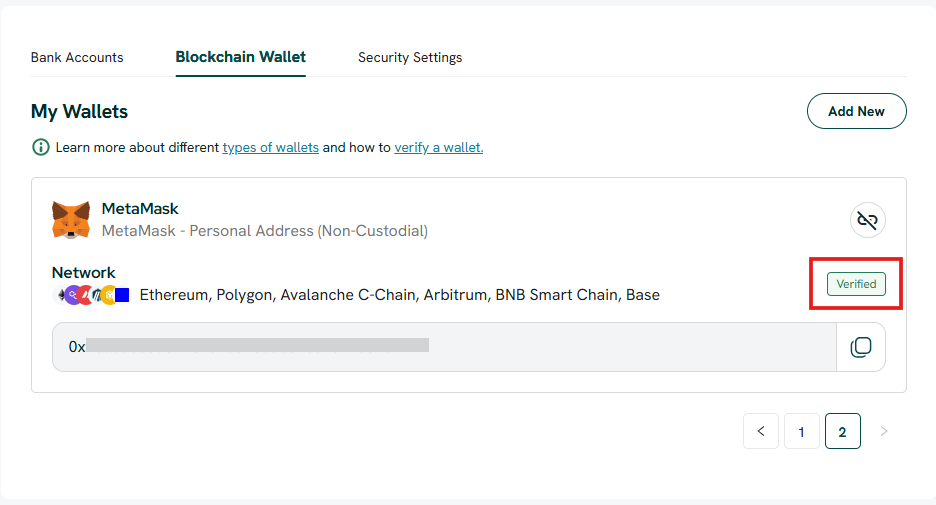
Once the transfer is confirmed, your wallet will be verified. You can check its status under: "My Account" > "Blockchain Wallet".
Need help?
Please contact StraitsX Support if:
- you cannot complete the required action;
- wallet verification fails;
- you cannot see the Confirm Deposit or Action Needed option for your pending transaction; or
- your transaction remains pending after you have provided the requested information.
Was this article helpful?
That’s Great!
Thank you for your feedback
Sorry! We couldn't be helpful
Thank you for your feedback
Feedback sent
We appreciate your effort and will try to fix the article